Questions and support
Can I preview the partner program before applying?
Yes. How it works shows every step, and Notifications offers a disabled preview. See the partner program guide for applications, referral links, notifications, earnings, and withdrawals.
Where should I start?
Follow Quick start, then calculate a birth chart. For an overview of the other tools, see Tools and navigation.
Why is the calculation button unavailable?
Check the date and time, then select a birthplace from the search results. Typing a city name without selecting a result leaves the location incomplete.
If you already have a report and see a waiting period, follow the time shown before starting another calculation.
What do the chart symbols mean?
The chart-reading guide illustrates planetary placements, incoming and outgoing aspects, and sign connections.
Why do two calculations differ?
Compare the exact date, local time, selected city, chart type, and calculation settings. Do not convert local birth time to UTC before entering it. See the birth-data checklist and report guide.
How do I change a saved chart or its public access?
Use the chart's edit action to correct its birth details. Use Share inside the horoscope to control public access and name visibility. These are separate from the selected date used for period analysis. See Save, edit, and share charts.
Can I use VedicTime as a phone app?
Yes. Add VedicTime to your home screen using Safari on iPhone or iPad, or Chrome on Android.
How do I change the manual's language?
Use the language menu at the top of the page. It opens the matching English or Russian article. On a phone, the language option is in the top navigation menu.
Contact support
Open the VedicTime contact page. Describe what you were trying to do, which page you used, what happened, and what you expected instead.
Include your device and browser, the text of any error, and a link to a screenshot if it helps explain the problem. Hide personal information that is not needed to understand the issue.
Transfer an existing subscription
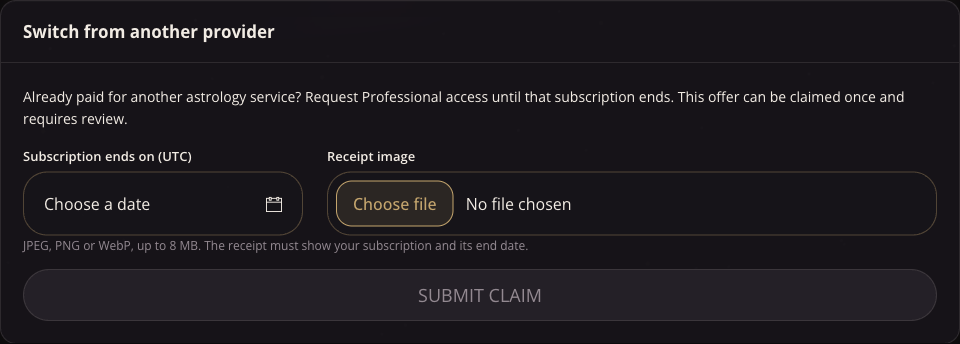
In Settings → Current plan, open Switch from another provider. If you have no active paid subscription and have never submitted a claim, enter the previous provider’s subscription end date and upload a receipt image (JPEG, PNG or WebP, up to 8 MB). Trial and free accounts are eligible. The receipt should show the subscription and its end date.
Choose Submit claim. The form is replaced by the review status; each account can submit once, including if a claim is declined. An administrator checks the receipt and may correct the end date. Approval activates Professional access through 23:59:59 UTC on the approved date and triggers an activation email. After approval or rejection, the transfer block disappears. Approved access is shown in Current plan. If you buy a subscription while waiting, approval is blocked while that subscription is active. Contact support if a declined claim needs investigation.
Why does checkout say a subscription or unfinished payment already exists?
An unfinished checkout can exist before a subscription is created, so Current plan may show no subscription. Submitting the same payment provider, method, plan and currency reopens the earlier checkout when it is still available and its price matches. When you change your selection, we try to close the earlier unpaid checkout before opening another. If the provider cannot confirm it is closed, a message links to Payment history so you can check its status. Wait for the payment to finish or expire; contact support if its status does not change. If you already have a subscription, manage it in Settings → Current plan before starting another.