
Partner program
Share VedicTime with your audience and earn commission when referred users pay for subscriptions or credit packages. Open Partner program → How it works in your personal account to begin. Sign in if prompted.
Explore before applying
How it works shows the full process before your account is approved. The source field and example affiliate link are disabled, and the example cannot be copied. Your own link becomes available after approval.
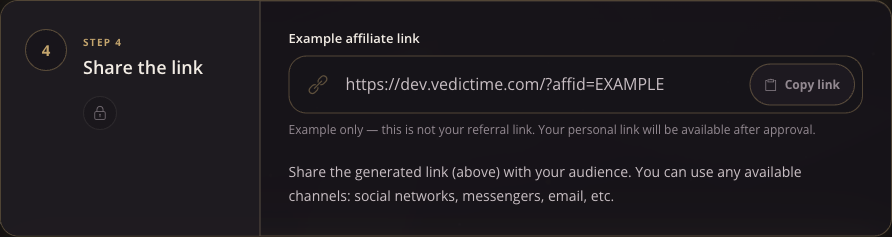
Example from the development site. EXAMPLE is a placeholder, not a partner identifier. Open the image to view it at full size.
The Notifications tab also opens before approval. Its recipients and switches are examples: they do not represent saved preferences, cannot be edited, and cannot send test messages.
1. Submit your application
- In How it works, enter your name and email address.
- Optionally, add your website or social media profile.
- Describe your work and audience in What do you do?, then explain How would you promote VedicTime?
- Read and accept the privacy and personal-data consent, then choose Submit application.
The form is replaced by the application status. While it is being processed, you can continue reading the steps and exploring notification settings. Approval unlocks your personal referral link and partner tools. If your application is not approved, contact support for details.
2. Create and share a referral link
After approval, open How it works and find Your public affiliate link. Optionally enter a Source ID, such as youtube or newsletter, to distinguish the places where you share the link. Use short labels of Latin letters and numbers, no more than 32 characters. The generated link updates as you type.
Choose Copy link, then share it with your audience on your website, social networks, in messengers, or by email. Use your actual generated link; the preview's EXAMPLE identifier will not attribute referrals to you.
You can also add your affiliate parameter to another public VedicTime page. For example:
https://vedictime.com/en/tools/birth-chart?affid=YOUR_ID:youtubeReplace YOUR_ID with the affiliate ID shown in your partner account. The part after : is the optional source. If the destination already has a query string, append &affid=YOUR_ID:youtube instead of starting a second ?.
3. Configure notifications
Open Notifications after approval. Each of its four sections has its own Save settings button, so save changes in each section you edit.
Choose recipients
- Email notification recipient: enable email notifications and enter a delivery address. Leave the address empty to use the confirmed account email shown below the field.
- Telegram notification recipient: enable Telegram notifications and choose My Telegram account or Telegram channel. For a personal account, use the connection control. For a channel, add the bot linked on the page as an administrator with permission to post, then enter the channel's
-100…ID or public@username.
Save the recipient section before testing. Test registration notification and Test commission notification send samples to the saved, enabled recipient, even if the corresponding event switch is off. A queued confirmation means delivery may take a moment. If testing fails, check the recipient and Telegram connection; if you reach the test limit, wait a minute.
Choose events
In New user registrations and New partner commissions, choose email, Telegram, or both, then save each section. A delivery channel must be enabled and have a recipient before you can select it for an event.
4. Follow referrals and earnings
After approval, use the partner tabs to review activity:
| Tab | What you can check |
|---|---|
| Users | Referred users, registration and activity dates, payments, country, and the source recorded as Campaign. |
| Statistics | Audience distribution by country, with an option to show online users only. |
| Payments | Completed subscription and credit purchases, revenue, and paying-user metrics. |
| Wallet | Balance, frozen funds, commissions, withdrawals, and balance transactions. |
Use the reporting-period filters to narrow results. If a list is empty, try a wider period. Payment reports show purchase revenue; Wallet shows your commission and balance movements, so the amounts serve different purposes.
The program advertises commission of 10–30%, depending on partner status. Check Current commission in your account for your rate. Commission is based on completed payments after acquiring fees; registration alone does not earn a reward.
5. Request a withdrawal
How it works lists a 50 EUR withdrawal threshold and the supported payout methods: PayPal and Russian bank transfers. Review the current information there before requesting payment.
- Open Wallet and check your available balance.
- Enter the Withdrawal amount and choose Request withdrawal.
- After confirmation, the requested funds are frozen while the request is processed. They cannot be requested again during that time.
When a withdrawal is completed, it is deducted from the wallet. If it is rejected, the reserved funds become available again. If a request fails, check your available balance and retry; for a request that needs investigation, contact support.